Facebook recently made headlines by announcing that they would start supporting the embedding of animated version of the Graphics Interchange Format, more widely known as the GIF. This was a big deal, apparently, because people still care about GIFs. But they shouldn’t — at least not in a way specific to the actual file format.
To me, the GIF has become something bigger than itself. Its name has become ubiquitous with the idea of a short video clip that people find entertaining. Just like how we refer to all facial tissues as Kleenex or all large trash bins as Dumpsters (yes, it’s a registered trademark), a GIF doesn’t really need to be a .gif file per se, it just needs to be a short and shareable video. The problem is, the actual GIF format is pretty outdated and inefficient when it comes to embedding video clips. It’s a dinosaur. It’s Windows 95. We don’t need it anymore. We can make GIFs better. We have the technology.
Back in the day, the main pull of the GIF format was that it was supported on all browsers (e.g. Internet Explorer and Netscape Navigator). You didn’t need any special plugins or software to see a GIF on a web page because it was an image file, like a .PNG or .JPG. GIFs were special in that one could layer multiple images on top of one another to create an animation effect. As expected, this still lead to large files and long load times for web pages. But it’s all we had.
(Not so) long ago, creating GIFs was a pretty big pain. You had to finagle some software to record the video from your screen, then split up the video into frames with a program like Photoshop or GIMP. The results were rarely the same, and there was usually some sort of stuttering or ghosting or another weird issue that made the thing look off a bit. They were usable, but not always pretty.
Today, Flash is pretty much dead and every major browser supports the most common video codecs. HTML5 ushered in a new way to display video — a way that was baked in to the HTML standard. Long story short — if your computer (or mobile device) has any kind of modern browser installed, it can support HTML5 video. It’s leaner and loads quicker, and we all should be adopting it.
We here at TechGraphs have gotten requests to give a how-to on creating GIFs. But I’m not going to do that. Because, as Managing Editor, I’m making a statement on behalf of the site. We’ve pussyfooted around the issue before, but we’re making a stand. The GIF is dead. It’s time to put in on an ice flow floe and let it float on into the Great Beyond. It’s been supplanted by younger and stronger technology. No, I will not be showing you how to create a GIF. I will be showing you how to create short video clips that are easily shareable on Facebook, Twitter, your Tumblr page or your blog. We’ll be utilizing two different sites for this tutorial — Gfycat and something we’ve featured here before, Streamable.
To create these videos, we’ll first need, well, some video. There are a couple ways to go about this. Both Streamable and Gfycat allow you to simply input the URL of your video and let them do the converting. However, Gfycat only allows 15 seconds worth of upload. Streamable does allow larger uploads and the ability to trim time off, but long videos still lead to long upload and conversion times. It’s probably best to get the video on your computer and work with it from there. To do so, I’ve had good success with a Chrome Extension called Video Downloader Professional. This extension will search the code of the page you are on and will find the source file for any video used in that page. You just click the little green arrow next to your address bar and it will give you the option to download the video. A couple notes: you may have to start playing the video for the extension to pick it up. Also, if the video has an ad, it might show up in the list of available downloads. Just make sure you are grabbing the right video. The file sizes are displayed on this list. You almost always want the longer one.
So, let’s say I want to make a clip of Joey Gallo’s first career home run from last night. (I’m using an MLB clip here, but this will work in many sites, including YouTube). I use the extension to download the video into my Downloads folder. Now, it’s fairly long, so I probably should edit it down a little. How you do this depends on your OS. If you have a Mac, you can use the built-in Quicktime Player to quickly trim down a video. Windows users can download the free Windows Movie Maker and use that to edit the clip. Read the tutorials and get comfortable with the software. You’re not re-making Jaws here. You’re just cutting a single video clip. Remember, Gfycat only allows 15-second clips, so edit accordingly if you’re planning to use that service. Once the clip is edited, save it somewhere. It is now time to upload.
Uploading to Gfycat
Go to Gfycat and click the Upload button in the upper right. Click Browse and find the video on your computer. It will begin uploading and converting.
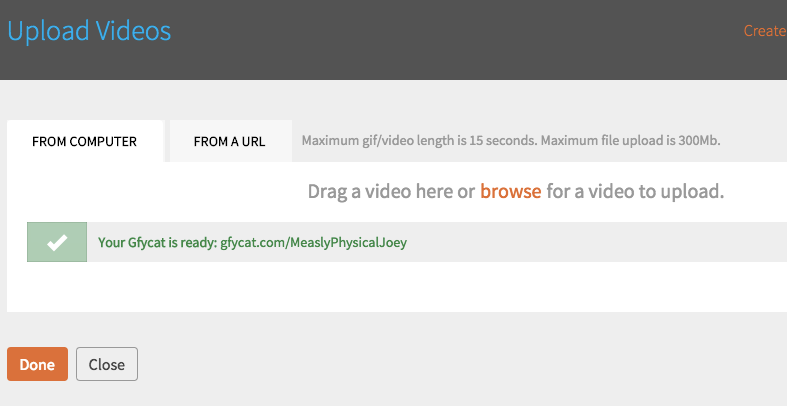
Click the newly-created link to go the clip page. Here, when you move your mouse to the right, you’ll see a couple buttons. One is to create an actual .gif file (IF YOU MUST), and the other is to grab links.
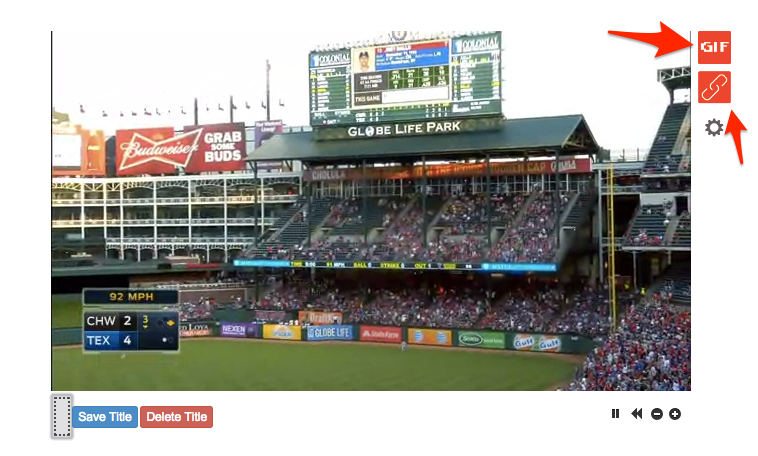
You can get a straight link, and some code to embed the clip in a webpage. Like this! You can tweak that embed link a little to change the height and width of the clip if your blog has certain size constraints. This creates your standard GIF-looking clip. This is good enough for most applications, but what if you want more an actual video experience? What if you want a little longer clip? What if you want sound? Sure you could use your phone to take a Vine of your computer screen, but we’re better than that. Let’s use Streamable to create a quality clip that’s still shareable.
Uploading to Streamable
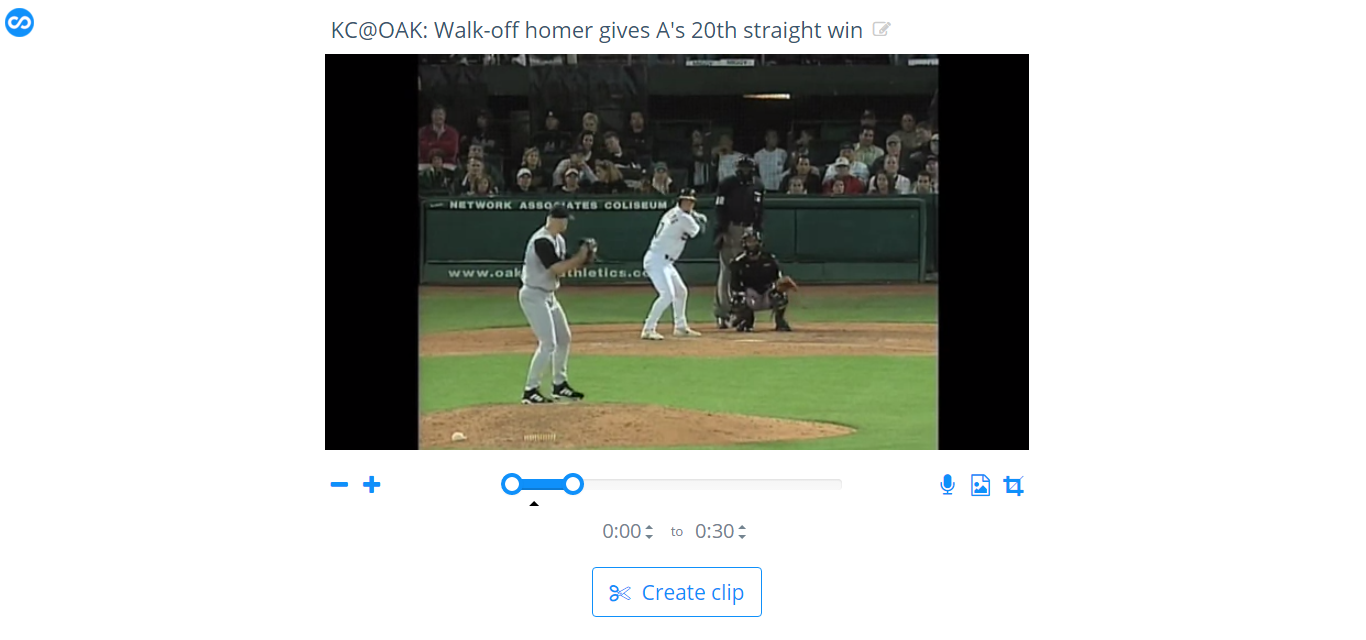
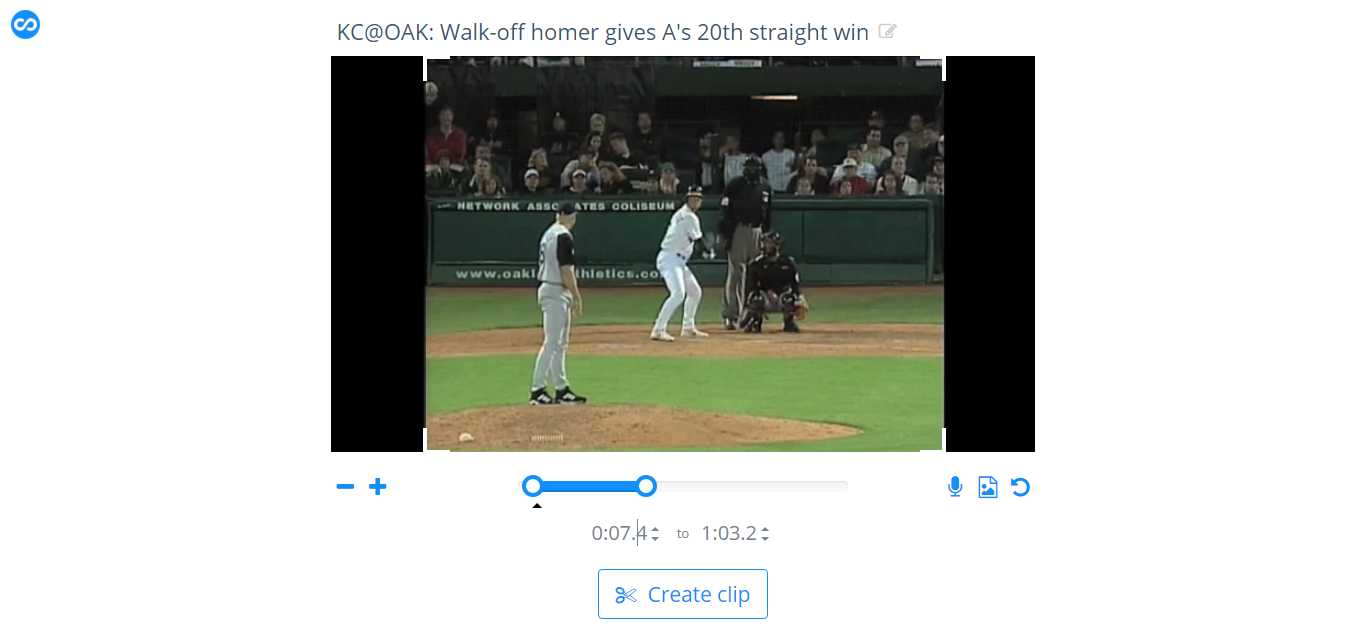
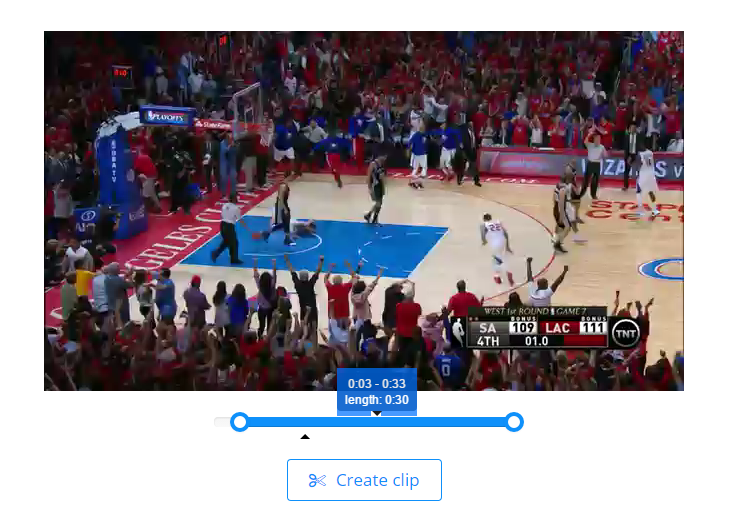
Go to Streamable and click the Upload button right in the middle. Again, find your video and Streamable will start uploading and converting. 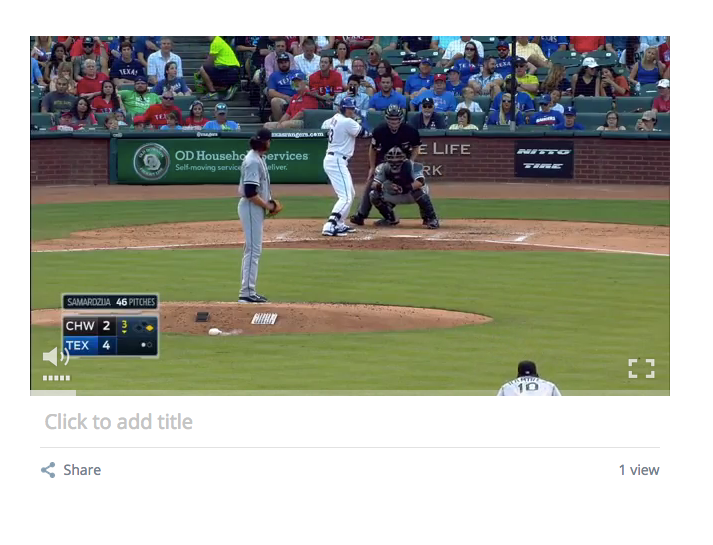 Much like Gfycat, you get options to add a title and share the link.
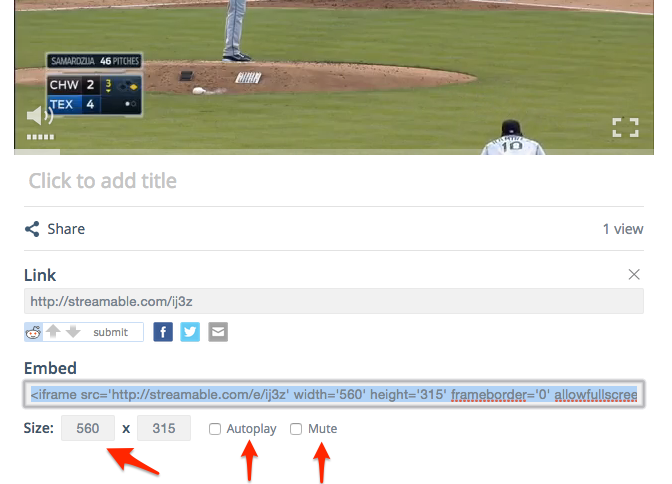
If you click Share, you again get options to copy a regular link or an embed code. Streamable offers some options to change the height and width of the video as well as enabling autoplay and muting. Clicking both will give you a GIF-like experience, but leaving them off will make it feel more like a video. The choice is yours, but it’s certainly nice to have the choice.
These clips will load faster and won’t bog down the browser. They won’t take up space on your servers. They aren’t quite GIFs, but that’s OK. They’re better. You can have the best of both worlds. Short, shareable clips will be around for a long time, but not in the aging format we’ve been using. You now have the knowlege. The tools are free and easy to use. Be a part of the future.