How To Use R For Sports Stats, Part 3: Projections

In this series, we’ve walked through how exactly you can use R for statistical analysis, from the absolute basics of R coding (in part 1) to visualizing data and correlation tests (in part 2).

Since you’re reading this on TechGraphs, though, you might be interested in statistical projections, so that’s how we’ll wrap this up. If you’re just joining us, feel free to follow along, though looking through parts 1 and 2 first might help everything make more sense.

In this post, we’ll use R to create and test a few different projection systems, focusing on a bare-bones Marcel and a multiple linear regression model for predicting home runs. I’ve said a couple times before that we’re just scratching the surface of what you can do — but this is especially true in this case, since people write graduate theses on the sort of stuff we’re exploring here. At the end, though, I’ll point you to some places where you can learn more about both baseball projections and R programming.

Baseline

Let’s get everything set up. We’ll have to start by abandoning –well, modifying– that test data set that served us so well in Parts 1/2; we’ll add another two years of data (2011-14), trim out some unnecessary stats, and add a few which might prove useful later on. It’s probably easiest just to download this file.

Then we’ll load it:

fouryr = read.csv("FG1114.csv")

convert some of the percentage stats to decimal numbers:

fouryr$FB. = as.numeric(sub("%","",fouryr$FB.))/100
fouryr$K. = as.numeric(sub("%","",fouryr$K.))/100
fouryr$Hard. = as.numeric(sub("%","",fouryr$Hard.))/100
fouryr$Pull. = as.numeric(sub("%","",fouryr$Pull.))/100
fouryr$Cent. = as.numeric(sub("%","",fouryr$Cent.))/100
fouryr$Oppo. = as.numeric(sub("%","",fouryr$Oppo.))/100

and create subsets for each individual year.

yr11 = subset(fouryr, Season == "2011")
colnames(yr11) = c("2011", "Name", "Team11", "G11", "PA11", "HR11", "R11", "RBI11", "SB11", "BB11", "K11", "ISO11", "BABIP11", "AVG11", "OBP11", "SLG11", "WAR11", "FB11", "Hard11", "Pull11", "Cent11", "Oppo11", "playerid11")
yr12 = subset(fouryr, Season == "2012")
colnames(yr12) = c("2012", "Name", "Team12", "G12", "PA12", "HR12", "R12", "RBI12", "SB12", "BB12", "K12", "ISO12", "BABIP12", "AVG12", "OBP12", "SLG12", "WAR12", "FB12", "Hard12", "Pull12", "Cent12", "Oppo12", "playerid12")
yr13 = subset(fouryr, Season == "2013")
colnames(yr13) = c("2013", "Name", "Team13", "G13", "PA13", "HR13", "R13", "RBI13", "SB13", "BB13", "K13", "ISO13", "BABIP13", "AVG13", "OBP13", "SLG13", "WAR13", "FB13", "Hard13", "Pull13", "Cent13", "Oppo13", "playerid13")
yr14 = subset(fouryr, Season == "2014")
colnames(yr14) = c("2014", "Name", "Team14", "G14", "PA14", "HR14", "R14", "RBI14", "SB14", "BB14", "K14", "ISO14", "BABIP14", "AVG14", "OBP14", "SLG14", "WAR14", "FB14", "Hard14", "Pull14", "Cent14", "Oppo14", "playerid14")

(We’re renaming the columns for each subset because the merge() function has some problems if you try to merge too many sets with the same names. If you want to explore the less hacked-together way of reassembling data frames in R, take a look at the dplyr package.)

Anyway, we’ll merge these all back into one set:

set = merge(yr11, yr12, by = "Name")
set = merge(set, yr13, by = "Name")
set = merge(set, yr14, by = "Name")

Still with me? Good. Thanks for your patience. Let’s start testing projections.

Specifically, we’re going to see how well we can use the 2011-2013 data to predict the 2014 data. For simplicity’s sake, we’ll focus mostly on a single stat: the home run. It’s nice to test with–it’s a 5×5 stat, it has a decent amount of variation, it gives us experience with testing counting stats while being more player-controlled than R/RBI… and, come on, we all dig the long ball.

Now when you’re testing your model, it’s nice to have a baseline–a sense of the absolute worst that a reasonable model could do. For our baseline, we’ll use previous-year stats: we’ll project that a player’s 2013 HR count will be exactly what they hit in 2014.

To test how well this works, we’ll follow this THT post and use the mean absolute error–the average number of HRs that the model is off by per player. So if a system projects two players to each hit 10 homers, but one hits zero and the other hits 20, the MAE would be 10.

(If you end up doing more projection work yourself, you may want to try a more fine-tuned metric like r² or RMSE, but I like MAE for a basic overview because the value is directly measurable to the stat you’re examining.)

To find the mean absolute error, take the absolute value of the difference between the projected and actual stats, sum it up for every player, then divide by the number of players you’re projecting:

sum(abs(set$HR13 - set$HR14))/length(set$HR14)
> [1] 6.423729

So the worst projection system possible should be able to beat an average error of about six and a half homers per player.

Marcel, Marcel

Now let’s try a slightly-less-than-absolute-worst model.

Marcel is the gold standard of bare-bones baseball projections. At its core, Marcel predicts a player’s stats using the last 3 years of MLB data. The previous year (Year X) gets a weight of 5, the year before (X-1) gets a weight of 4, and X-2 gets a weight of 3. As originally created, Marcel also includes an adjustment for regression to the mean and an age factor, but we’ll set aside such fancies for this demonstration.

To find Marcel’s prediction, we’ll create a new column in our dataset weighing the last 3 years of HRs. Since our weights are 5 + 4 + 3 = 12, we’ll take 5/12 from the 2013 data, 4/12 from the 2012 data, and 3/12 from the 2011 data. Then we’ll round it to the nearest integer.

set$marHR = (set$HR13 * 5/12) + (set$HR12 * 4/12) + (set$HR11 * 3/12)
set$marHR = round(set$marHR,0)

Voila! Your first (real) projections. How do they perform?

sum(abs(set$marHR - set$HR14))/length(set$HR14)
> [1] 5.995763

Better by nearly half a home run. Not bad for two minutes’ work. 6 HR per player still seems like a lot, though, so let’s take a closer look at the discrepancies. We’ll create another column with the (absolute) difference between each player’s projected 2014 HRs and actual 2014 HRs, then plot a histogram displaying these differences.

set$mardiff = abs(set$marHR-set$HR14)
hist(set$mardiff, breaks=30, col="red")
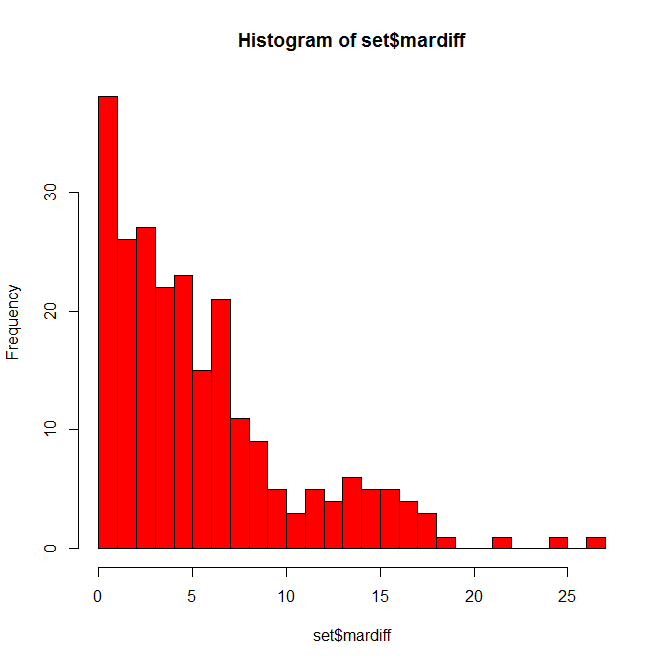
Histogram of Marcel HR errors

Not as bad as you might have thought. Many players are only off by a few home runs, some off by 10+, and a few fun outliers hanging out at 20+. Who might those be?

set = set[order(-set$mardiff),]
head(set[c(1,72,90,91)], n=10)

(In that last line, we’re calling specific column names so we don’t have to search through 100 columns for the data we want when we display this. You can find the appropriate numbers using colnames(set).)
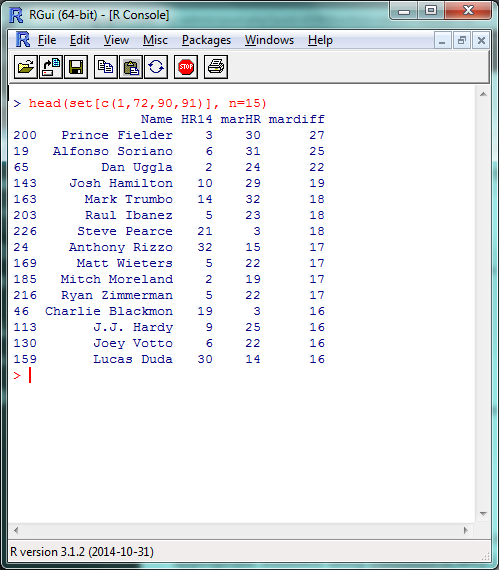
List of players with largest Marcel HR errors

A list headlined by a season-ending injury and two players released by their teams in July; fairly tough to predict in advance, IMO.

While we’re here, let’s go ahead and create Marcel projections for the other 5×5 batting stats:

set$marAVG = (set$AVG13 * 5/12) + (set$AVG12 * 4/12) + (set$AVG11 * 3/12)
set$marAVG = round(set$marAVG,3)
set$marR = (set$R13 * 5/12) + (set$R12 * 4/12) + (set$R11 * 3/12)
set$marR = round(set$marR,0)
set$marRBI = (set$RBI13 * 5/12) + (set$RBI12 * 4/12) + (set$RBI11 * 3/12)
set$marRBI = round(set$marRBI,0)
set$marSB = (set$SB13 * 5/12) + (set$SB12 * 4/12) + (set$SB11 * 3/12)
set$marSB = round(set$marSB,0)

And, for good measure, save it all in an external file. We’ll create a new data frame from the data we just created, rename the columns to look nicer, and write the file itself.

marcel = data.frame(set$Name, set$marHR, set$marR, set$marRBI, set$marSB, set$marAVG)
colnames(marcel) = c("Name", "HR", "R", "RBI", "SB", "AVG")
write.csv(marcel, "marcel.csv")

Before we move on, I want to quickly cover one more R skill: creating your own functions. We’re going to be using that absolute mean error command a couple more times, so let’s create a function to make writing it a bit easier.

modtest = function(stat){
 ame = sum(abs(stat - set$HR14))/length(set$HR14)
 return(ame)
}

The ‘stat’ inside function(stat) is the argument you’ll be including in the function (here, the column of projected data we’re testing); the ‘stat’ shows up inside the bracketed text where your projected data did when we originally used this command. The return() is what your function outputs to you. Let’s make sure it works by double-checking our Marcel HR projection:

modtest(set$marHR)
> [1] 5.995763

Now we can just use modtest() to find the absolute mean error. Functions can be as long or as short as you’d like, and are incredibly helpful if you’re using a certain set of commands repeatedly or doing any sort of advanced programming.

Hold The Line

With Marcel, we used three factors–HR counts from 2013, 2012, and 2011–with simple weights of 5, 4, and 3. For our last projection model, let’s take this same idea, but fine-tune the weights and look at some other stats which might help us project home runs. This, basically, is multiple linear regression. I’m going to handwave over a lot of the theory behind regressions, but Bradley’s how-to from last week does a fantastic job of going through the details.

Remember back in part 2, when we were looking at correlation tests in r² and we mentioned how we were basically modeling a y = mx + b equation? That’s basically what we did with Marcel just now, where ‘y’ was our projected HR count and we had three different mx values, one each for the 2013, 2012 and 2011 HR counts. (In this example, ‘b’, the intercept, is 0.)

So we can then use the same lm() function we did last time to model the different factors that can predict home run counts. We’ll give R the data and the factors we want it to use, and it’ll tell us how to best combine them to most accurately model the data. We can’t model the 2014 data directly in this example–since we’re testing our model against it, it’d be cheating to use it ‘in advance’–but we can model the 2013 HR data, then use that model to predict 2014 HR counts.

This is where things start to get more subjective, but let’s start by creating a model using the last two years (2013/2012) of HR data, plus the last year (2012) of ISO, Hard%, and Pull%. In the lm() function, the data we’re attempting to model will be on the left, separated by a ‘~’; the factors we’re including will be on the right, separated by plus signs.

hrmodel = lm(set$HR13 ~ set$HR12 + set$HR11 + set$Hard12 + set$Pull12 + set$ISO12)
summary(hrmodel)
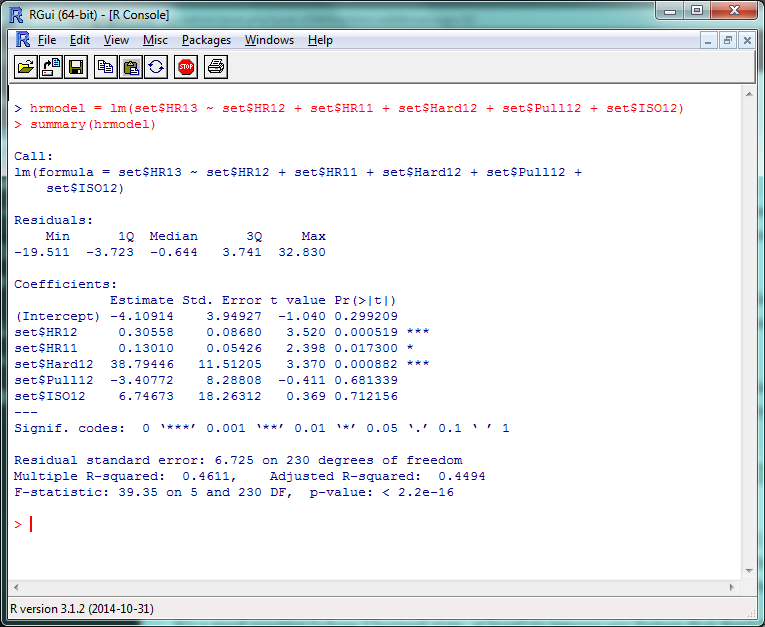
Screenshot of initial linear model

There’s a lot of stuff to unpack here, but the first things to check out are those “Pr(>|t|)” values in the right corner. Very simply, a p-value less than .05 there means that that factor is significantly improving your model. (The r² for this model, btw, is .4611, so this is accounting for roughly 46% of the 2013 HR variance.) So basically, ISO and Pull% don’t seem to add much value to this model, but Hard% does.

It’s generally a good practice to remove any factors that don’t have a significant effect and re-run your model, so let’s do that:

hrmodel = lm(set$HR13 ~ set$HR12 + set$HR11 + set$Hard12)
summary(hrmodel)
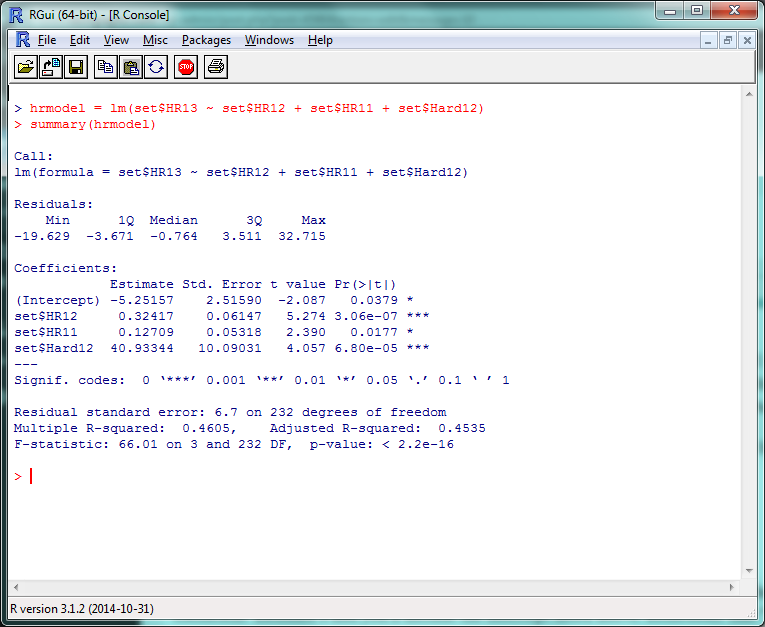
Screenshot of R model with significant factors

And there’s your multiple linear regression model. The format for the actual projection formula is basically the same as what we did for Marcel, except your weights will take the coefficient estimates and you’ll include the intercept listed above them. Remember that “HR12”, “HR11”, etc., are standing in for “last year’s HR total”, “the year before that’s HR total”, etc., so make sure to increment the stats by a year to project for 2014.

set$betHR = (-5.3 + (set$HR13 * .32) + (set$HR12 * .13) + (set$Hard13 * 40))
set$betHR = round(set$betHR,0)

Survey says…?

modtest(set$betHR)
> [1] 5.95339

…oh. Yay. So that’s an improvement of, uh…

modtest(set$marHR) - modtest(set$betHR)
> [1] 0.04237288

1/20th of a home run per player. Isn’t this fun? Some reasons why we might not have seen the improvement we expected:

  • We probably overfit the data. Since we ran the model on 2013 data, it probably did really well on 2013 data, but not as great on 2014. If we check the model on the 2013 data:
set$fakeHR = (-5.3 + (set$HR12 * .33) + (set$HR11 * .13) + (set$Hard12 * 40))
set$fakeHR = round(set$fakeHR,0)
sum(abs(set$fakeHR - set$HR13))/length(set$HR13)
> [1] 4.877119

It runs pretty well.

  • We didn’t include useful factors we could have. We just tested a few obvious ones; maybe looking at Cent% or Oppo% would be more helpful than Pull%? (They aren’t, just so you know.) More abstract factors like age, ballpark, etc., would obviously help–but including these would also require a stronger model.
  • Finally, projections are hard. Even if you have an incredibly customized set of projections, you’re going to miss some stuff. Take a system like Steamer, one of the most accurate freely-available projection tools around. How did their 2014 preseason projections stack up?
steamer = read.csv("steamer.csv")
steamcomp = merge(yr14, steamer, by = "playerid14")
steamcomp$HR = as.numeric(paste(steamcomp$HR))
steamcomp$HR = round(steamcomp$HR, 0)
steamcomp$HR[is.na(steamcomp$HR)] = 0
sum(abs(steamcomp$HR - steamcomp$HR14))/length(steamcomp$HR14)
> [1] 4.892157

That said, the lesson you should not take away from this is “oh, our homemade model is only 1 HR/player worse than Steamer!” Our data set is looking at players for whom we have several seasons’ worth of data —   the easiest players to project. If we had to create a full-blown projection system including players recovering from injury, rookies, etc., we’d look even worse.

If anything, this hopefully shows how much work the Silvers, Szymborskis, and Crosses of the world have put in to making projections better for us all. Here’s the script with everything we covered.

This Is Where I Leave You

Well, that about wraps it up. There’s plenty, plenty more to learn, of course, but at this point you’ll do well to just experiment a little, do some Googling, and see where you want to go from here.

If you want to learn more about R coding, say, or predictive modeling, I’d definitely recommend picking up a book or trying an online class through somewhere like MIT OpenCourseWare or Coursera. (By the end of which, most likely, you’ll be way beyond anything I could teach you.) If there’s anything particular about R you’d still like to see covered, though, let me know and I’ll see if I can do a writeup in the future.

Thanks to everyone who’s joined us for this series — the kudos I’ve read here and elsewhere have been overwhelming — and thanks again to Jim Hohmann for being my perpetual beta tester/guinea pig. Have fun!

How To Use R For Sports Stats, Part 2: Visualization and Analysis

Welcome back! In Part 1 of this series, we went over the bare bones of using R–loading data, pulling out different subsets, and doing basic statistical tests. This is all cool enough, but if you’re going to take the time to learn R, you’re probably looking for something… more out of your investment.

One of R’s greatest strengths as a programming language is how it’s both powerful and easy-to-use when it comes to data visualization and statistical analysis. Fortunately, both of these are things we’re fairly interested in. In this post, we’ll work through some of the basic ways of visualizing and analyzing data in R–and point you towards where you can learn more.

(Before we start, one commenter reminded me that it can be very helpful to use an IDE when coding. Integrated development environments, like RStudio, work similarly to the basic R console, but provide helpful features like code autocompletion, better-integrated documentation, etc. I’ll keep taking screenshots in the R console for consistency, but feel free to try out an IDE and see if it works for you.)

Look At That Data

We’ll be using the same set of 2013-14 batter data that we did last time, so download that (if you haven’t already) and load it back up in R:

fgdata = read.csv("FGdat.csv")

Possibly my favorite thing about R is how, often, all it takes is a very short function to create something pretty cool. Let’s say you want to make a histogram–a chart that plots the frequency counts of a given variable. You might think you have to run a bunch of different commands to name the type of chart, load your data into the chart, plot all the points, and so on? Nope:

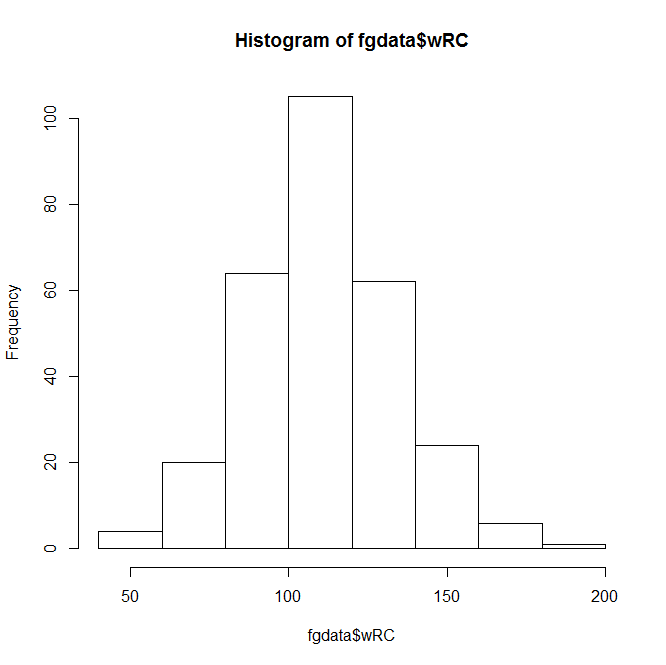
hist(fgdata$wRC)

Basic R histogramThis Instant Histogram(™) displays how many players have a wRC+ in the range a given bar takes up in the x-axis. This histogram looks like a pretty normal, bell-curveish distribution, with an average a bit over 100–which makes sense, since the players with a below-average wRC+ won’t get enough playing time to qualify for our data set.

(You can confirm this quantitatively by using a function like summary(fgdata$wRC).)

The hist() function, right out of the box, displays the data and does it quickly–but it doesn’t look that great. You can spend endless amounts of time customizing charts in R, but let’s add a few parameters to make this look nicer.

hist(fgdata$wRC, breaks=25, main="Distribution of wRC+, 2013 - 2014", xlab="wRC+", ylab= NULL, col="darkorange2")

In this command, ‘breaks’ is the number of bars in the chart, ‘main’ is the chart title, ‘xlab’ and ‘ylab’ are the axis titles, and ‘col’ is the color. R recognizes a pretty wide range of colors, though you can use RGB, hex, etc. if you’re more familiar with them.

Anyway, here’s the result:

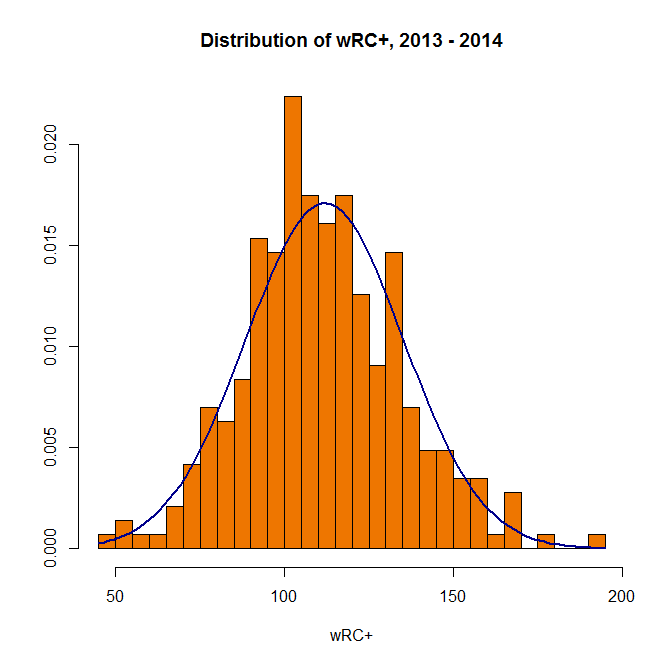
Visually appealing R histogramA bit better, right? The distribution doesn’t look quite as normal now, but it’s still pretty close–we can actually add a bell curve to eyeball far off it is.

hist(fgdata$wRC, breaks=25, freq = FALSE, main="Distribution of wRC+, 2013 - 2014", xlab="wRC+", ylab= NULL, col="darkorange2")
curve(dnorm(x, mean=mean(fgdata$wRC), sd=sd(fgdata$wRC)), add=TRUE, col="darkblue", lwd=2)

Visually appealing R histogram with curve

(In the first line above, “freq = FALSE” indicates that the y-axis will be a probability density rather than a frequency count; the second line creates a normal curve with the same mean and standard deviation as your data set. Also, it’s blue.)

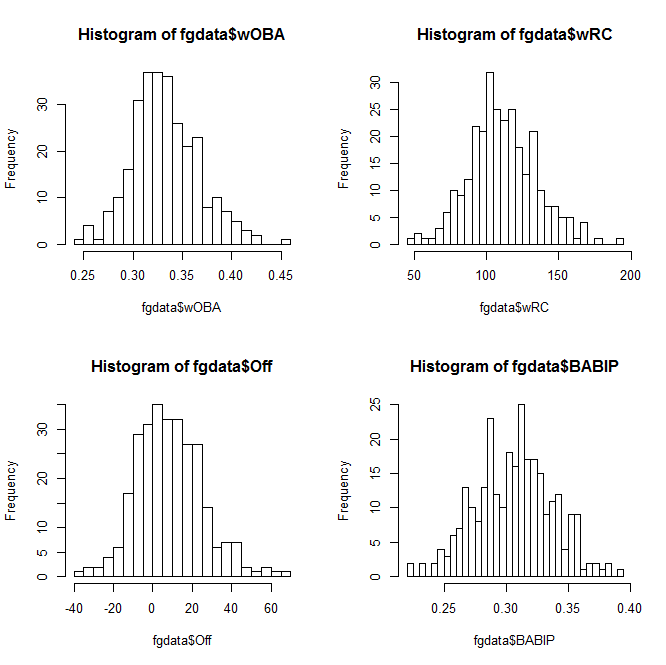
You can also plot multiple charts at the same time–use the par(mfrow) function with the preferred number of rows and columns:

par(mfrow=c(2,2)) 
hist(fgdata$wOBA, breaks=25) 
hist(fgdata$wRC, breaks=25) 
hist(fgdata$Off, breaks=25) 
hist(fgdata$BABIP, breaks=25)

2x2 grid of R histogramsWhen you want to save your plots, you can copy them to your clipboard–or create and save an image file directly from R:

png(file="whatisitgoodfor.png",width=400,height=350)
hist(fgdata$WAR, breaks=25)
dev.off()

(It’ll show up in the same directory you’re loading your data set from.)

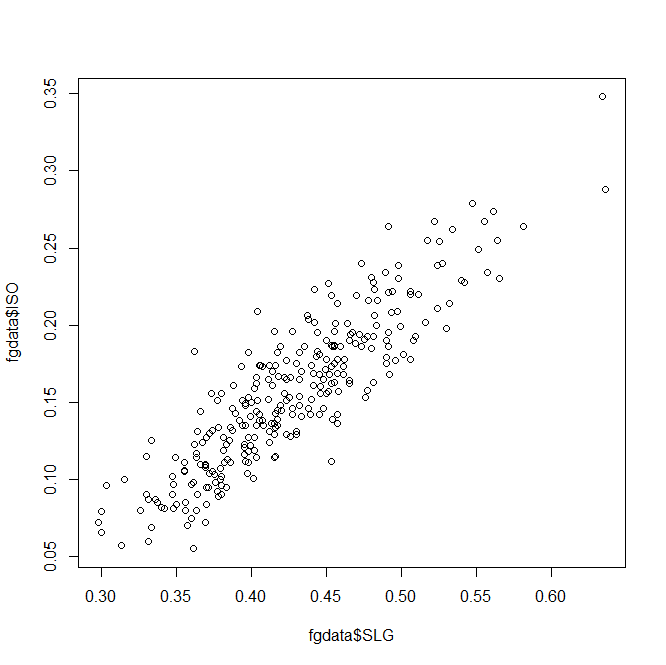
So that covers histograms. You can create bar charts, pie charts, and all of that, but you’re probably more interested in everyone’s favorite, the scatterplot.

At its most basic, the plot function is literally plot() with the two variables you want to compare:

plot(fgdata$SLG, fgdata$ISO)
Basic R scatterplot
Unsurprisingly, slugging percentage and ISO are fairly well-correlated. Results-wise, we’re starting to push against the limits of our data set–too many of these stats are directly connected to find anything interesting.

So let’s take a different tack and look at year-over-year trends. There are several ways you could do this in R, but we’ll use a fairly straightforward one. Subset your data into 2013 and 2014 sets,

fg13 = subset(fgdata, Season == "2013")
fg14 = subset(fgdata, Season == "2014")

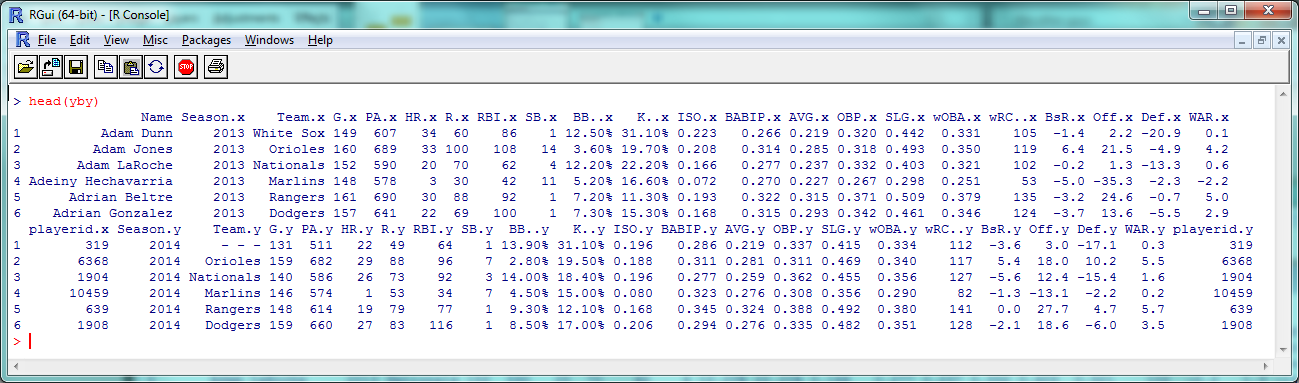
then merge() the two by name. This will create one large dataset with two sets of columns: one with a player’s 2013 stats and one with their 2014 stats. (Players who only appeared in one season will be omitted automatically.)

yby= merge(fg13, fg14, by=("Name"))
head(yby)

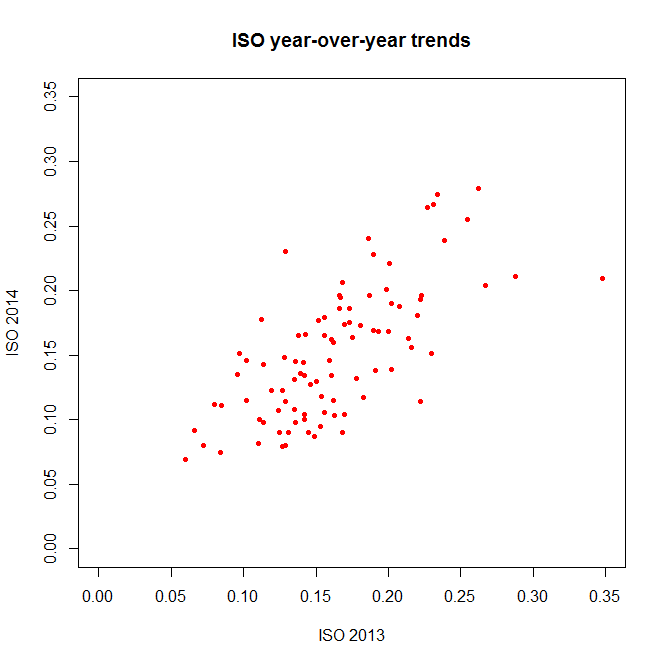
Year-by-year dataAs you can see, 2013 stats have an .x after them and 2014 stats have a .y. So instead of comparing ISO to SLG, let’s see how ISO holds up year-to-year:

plot(yby$ISO.x, yby$ISO.y, pch=20, col="red", main="ISO year-over-year trends", xlab="ISO 2013", ylab="ISO 2014")

Visually appealing R scatterplot(The ‘pch’ argument sets the shape of the data points; ‘xlim’ and ‘ylim’ set the extremes of each axis.)

Again, a decent correlation–but just *how* decent? Let’s turn to the numbers.

Relations and Correlations

If you’re a frequent FanGraphs reader, you’re probably familiar with at least one statistical metric: r², the square of the correlation coefficient. An r² near 1 indicates that two variables are highly-correlated; an r² near 0 indicates they aren’t.

As a refresher without getting too deep into the stats: when you’re ‘finding the r²’ of a plot like the one above, what you’re usually doing is saying there’s a linear relationship between the two variables, that could be described in a y = mx + b equation with an intercept and slope; the r² is then basically measuring how accurately the data fits that equation.

So to find the r² that we all know and love, you want R to create a linear model between the two variables you’re interested in. You can access this by getting a summary of the lm() function:

summary(lm(yby$ISO.x ~ yby$ISO.y))

R linear model summaryThe coefficients, p-values, etc., are interesting and would be worth examining in a more theory-focused post, but you’re looking for the “Multiple R-squared” value near the bottom–turns out to be .4715 here, which is fairly good if not incredible. How does this compare to other stats?

summary(lm(yby$BsR.x ~ yby$BsR.y))
> Multiple R-squared:  0.4306
summary(lm(yby$WAR.x ~ yby$WAR.y))
> Multiple R-squared:  0.1568
summary(lm(yby$BABIP.x ~ yby$BABIP.y))
> Multiple R-squared:  0.2302

BsR is about as consistent as ISO, but WAR has a smaller year-to-year correlation than you might expect. BABIP, less surprisingly, is even less correlated.

Let’s do one more basic statistical test: the t-test, which is often used to see if two sets of numeric data are significantly different from one another. This isn’t as commonly seen in sports analysis (because it doesn’t often tell us much for the data we most often work with), but just to run through how it works in R, let’s compare the ISO of low-K versus high-K hitters. First, we need to convert the percentages in the K% column to actual numbers:

fgdata$K. = as.numeric(sub("%","",fgdata$K.))/100

then subset out the low-K% and high-K% hitters:

lowk = subset(fgdata, K. < .15)
highk = subset(fgdata, K. > .2)

Then, finally, run the t-test:

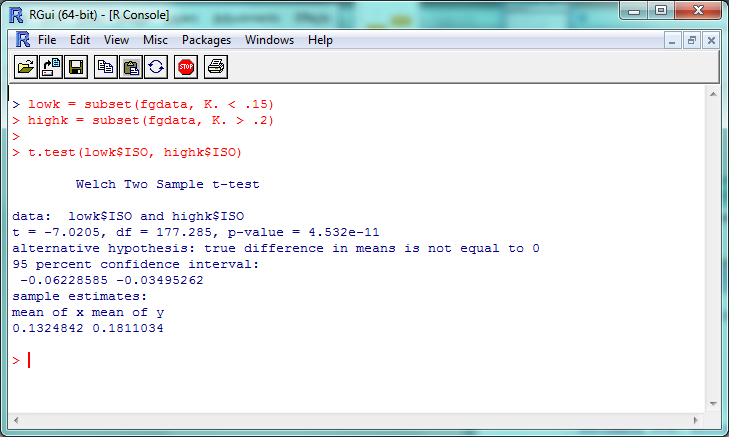
t.test(lowk$ISO, highk$ISO)

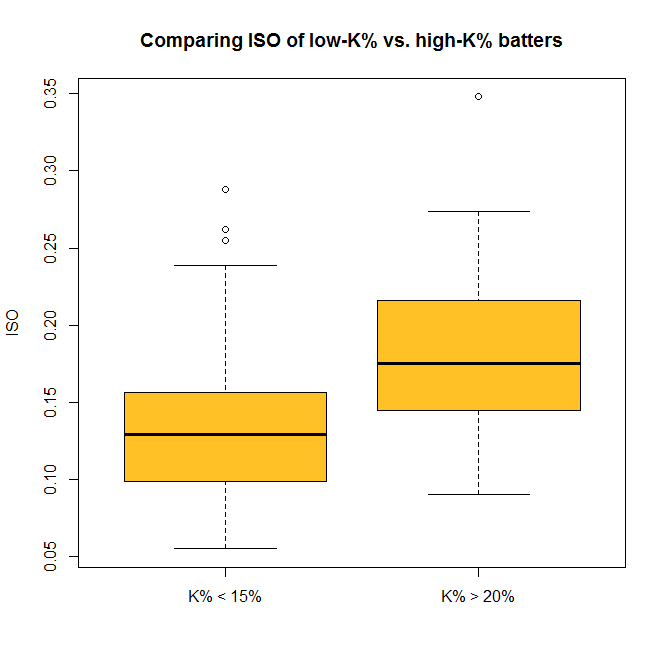
R T-test resultsThe “p-value” here is about 4.5 x 10^-11 (or 0.000000000045); a p-value less than .05 is generally considered significant, so we can consider this evidence that the ISO of high-K% hitters is significantly different than that of low-K% hitters. We can check this out visually with a boxplot–and you thought we were done with visualization, didn’t you?

boxplot(lowk$ISO, highk$ISO, names=c("K% < 15%","K% > 20%"), ylab="ISO", main="Comparing ISO of low-K% vs. high-K% batters", col="goldenrod1")

Visually appealing R boxplotSo now you can do some standard statistical tests in R–but be careful. It’s incredibly tempting to just start testing every variable you can get your hands on, but doing so makes it much more likely that you’ll run into a false positive or a random correlation. So if you’re testing something, try to have a good reason for it.

…And Beyond

We’ve covered a fair amount, but again, this only begins to cover the potential R provides for visual and statistical analysis. For one example of what’s possible in both these areas, check out this analysis of an online trivia league that was done entirely within R.

If you want to replicate his findings, though (which you can, since he’s posted the code and data online!), you’ll need to install packages, extensions for R that give you even more functionality. The ggplot2 package, for example, is incredibly popular for people who want to create especially cool-looking charts. You can install it with the command

install.packages("ggplot2")

and visit http://ggplot2.org/ to learn more. If R doesn’t do something you want it to out of the box, odds are there’s a package out there that will help you.

That’s probably enough for this week; here’s the script with all of this week’s code. In our next (last?) part of this series, we’ll look at taking one more step: using R to create (very) basic projections.


How To Use R For Sports Stats, Part 1: The Absolute Basics

If you’ve spent a sufficient amount of time messing around with sports statistics, there’s a good chance the following two things have happened, in order:

  1. You probably started off with Excel, because Excel does a lot of stuff pretty easily and everyone has Microsoft Office.
  2. At some point, you mentioned to someone that you use Excel to do statistical analysis and got a response along the lines of, “Oh, that’s cool, but you should really be using R.”

Politeness issues aside, they might well be right.

R is a programming language and software platform commonly used, particularly in research and academia, for data analysis and visualization. Because it’s a programming language, the learning curve is a bit steeper than it is for something like Excel–but if you dig into it, you’ll find that R makes it possible to do a wider variety of tasks more quickly. If you’re interested in finding interesting insights with just a few lines of code, if you want to easily work with large sets of data, or if you’re interested in using most any statistical test known to man, you should take a look at R.

Also, R is totally free, both as in “open-source” and as in “costs no money”. So that’s nice.

In this series, we’ll learn the basics of working in R with the goal of exploring sports data—baseball, in particular. I’m going to presume that you have no background whatsoever in coding or programming, but to keep things moving, I’ll try not to get too bogged down in the details (like how “=” does something different from “==”) unless absolutely necessary. This guide was made using R on Windows 7, but most everything should be the same on whatever OS you use.

Okay, let’s do this.

Getting Started

You can download R from https://cran.rstudio.com/.

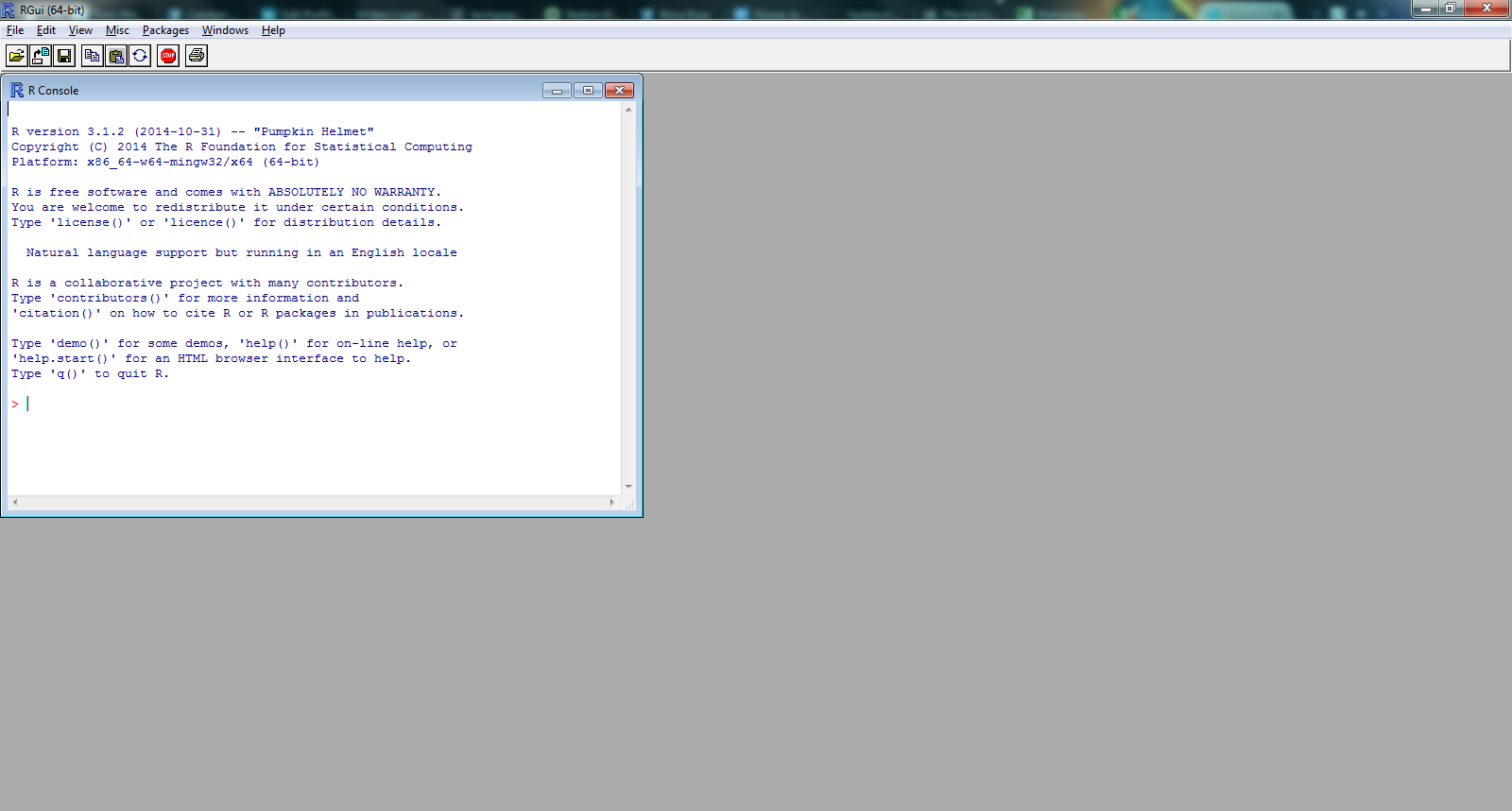
You’ll have to click on a few links (you want the ‘base’ install) and actually install R, but once that’s done you should have a screen that looks like:

Screenshot #1: R consoleThe “R console” is where your code is soon going to run–but first, we need some data. Let’s take FanGraphs’ standard dashboard data for qualifying MLB batters in 2013 and 2014. Save it as something short, like “FGdat.csv”. (If you have a custom FG dashboard or just want to take a shortcut, you can just download the data we’ll be using here.)

In R, we’ll be focusing mostly on functions (that look like, say, function(arg1, arg2)), which are what actually do things, and naming the output of these functions so we can refer back to it later. For example, a line of R code might look like this:

fgdata = read.csv("FGdat.csv")

The function here is the read.csv(), which basically means “read this CSV file into R”, and the argument inside is the file that we want to read. The left part (fgdata =) is us saying that we want to take the data we’re reading and name it “fgdata”.

This is, in fact, the first line we want to run in R to load our data, so type/paste it in and hit Enter to execute it.

(You may get an error like cannot open file ‘FGdat.csv’: No such file or directory; if you do, you likely need to change the directory that R is trying to read files from. Go to “File” -> “Change dir”, and change the working directory to the folder you saved the CSV in, or just move the CSV to the folder R has listed as the working directory.)

If you didn’t get an error and R simply moves on to the next line, you should be good to go!

Basic Stats

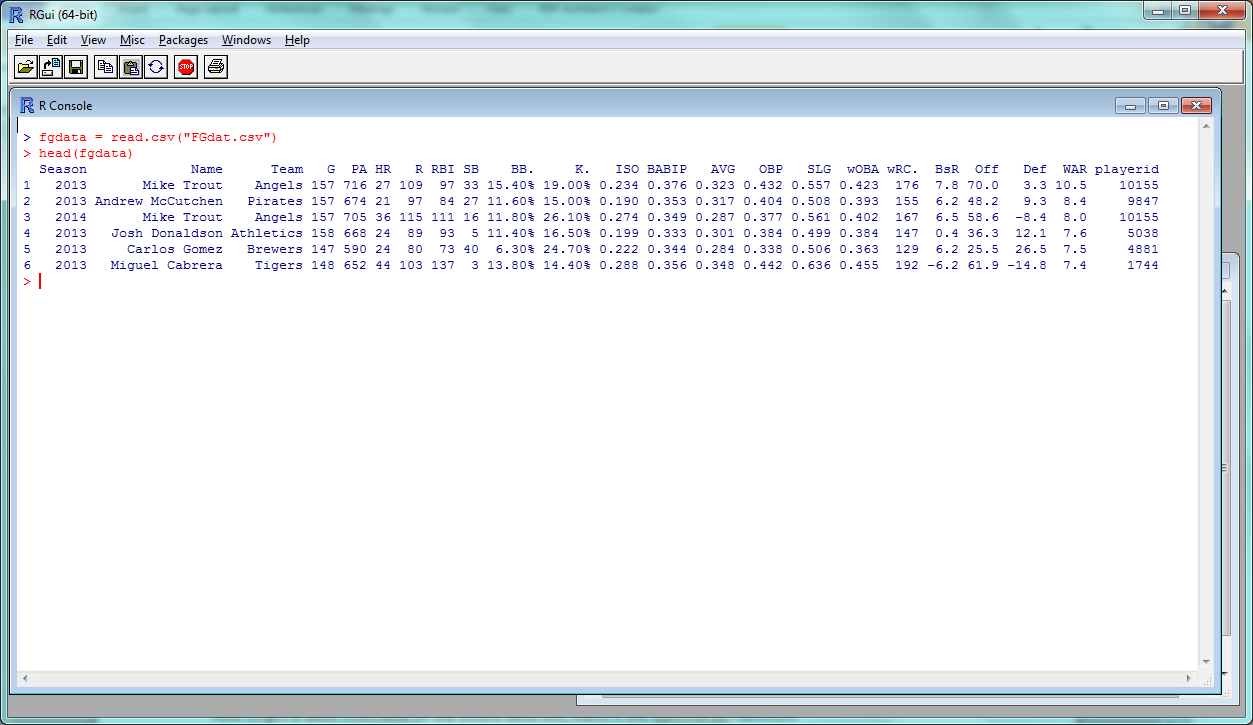
The head() function returns the first 6 rows of data; since our data set is named “fgdata”, we can try this out with the line of code:

> head(fgdata)

R Screenshot #2: head(fgdata)And to get a basic overview of the entire data set, there’s the summary() function:

> summary(fgdata)

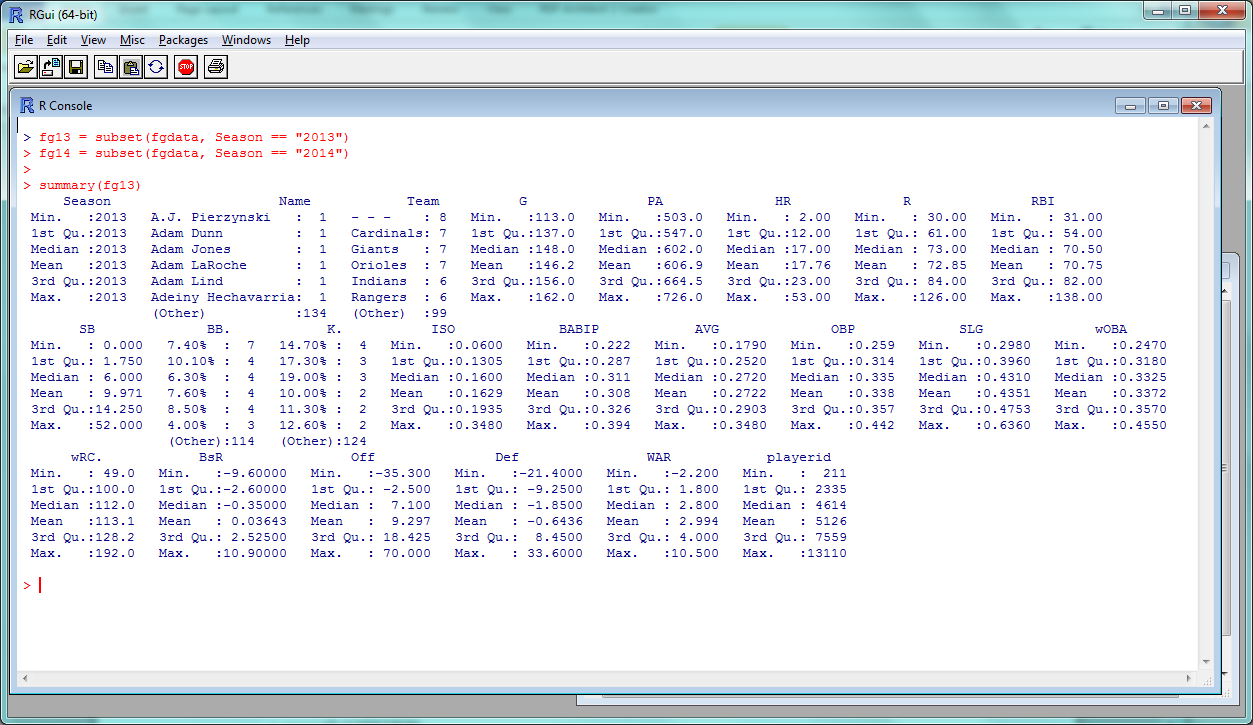
R Screenshot #3: summary(fgdata)See! Already, data on 20 variables in the blink of an eye.

“1st Qu.” and “3rd Qu.” are the first and third quartiles; the mean, median, minimum and maximum should be self-explanatory. So we can see that the average player in this data set had roughly a .270 average with 17 dingers and 10 steals in 146 games–not far from Alex Gordon’s 2014, basically.

Want to compare how the 2013 and 2014 stats stack up? R makes it pretty easy to pick out subsets of data. It’s called, reasonably, the “subset” function, and all you need to include is the data set you’re taking a subset of and the criteria the subset data should conform to.

Since we have “Season” as a field in the table, we just need to say “Season == “2013”” to get the 2013 players and “Season == “2014”” to get the 2014 players. We’ll name these new data sets ‘fg13’ and ‘fg14’:

> fg13 = subset(fgdata, Season == "2013")
> fg14 = subset(fgdata, Season == "2014")

A quick check should confirm that, yes, the data did subset correctly:

> summary(fg13)

R Screenshot #4: summary(fg13)and now we can do some basic statistical comparisons, like comparing the mean BABIPs between 2013 and 2014. (To single out a specific column in a data set, use the $ symbol.)

> mean(fg13$BABIP)
> mean(fg14$BABIP)

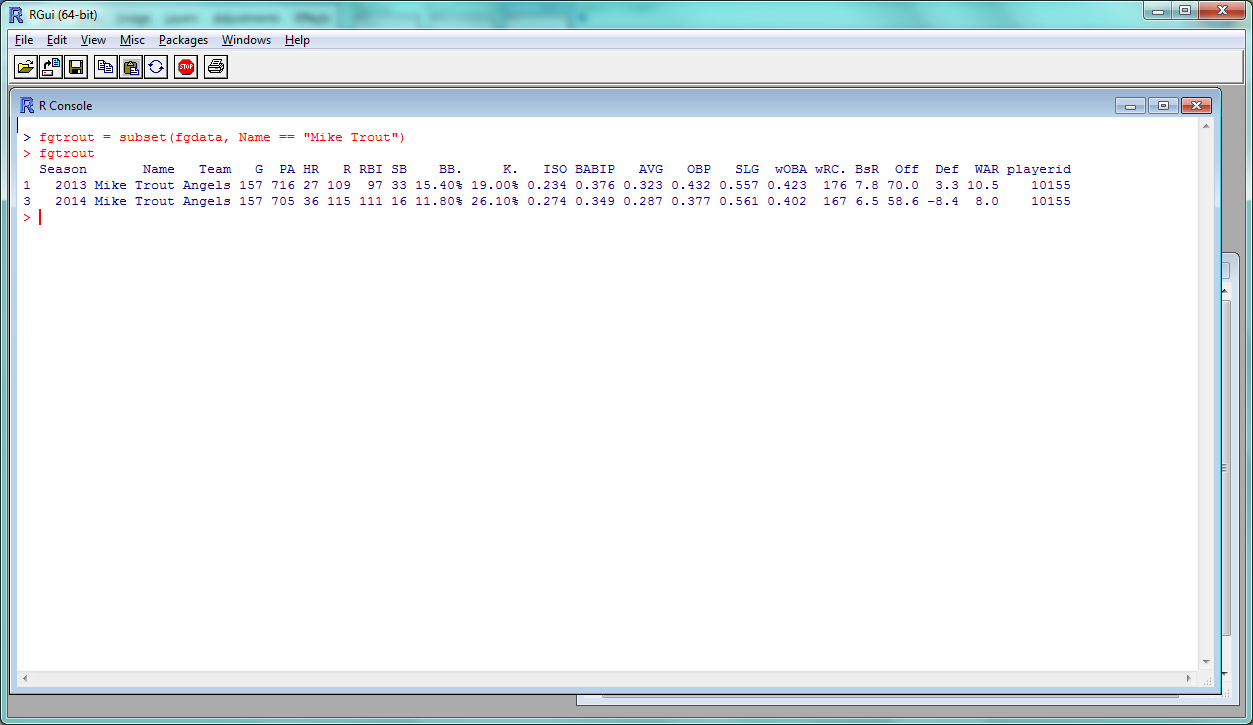
You can do whatever basic statistical tests you like–sd() for the standard deviation, et cetera–and pull out different subsets of the data based on whatever criteria you like. So “HR > 20” for all players who hit more than 20 home runs, or “Player == “Mike Trout”” to get data for all players named Mike Trout:

> fgtrout = subset(fgdata, Name == "Mike Trout")
> fgtrout

R Screenshot #5: fgtroutLastly, it’s not too common to need to reorder your data in R, but if you do, you can do so with the order() function. This line sorts the data by wRC+, ascending order:

> fgdata = fgdata[order(fgdata$wRC.),]

then returns the top 10 rows:

> head(fgdata, n = 10)

You can sort in descending order by placing a minus sign before the column:

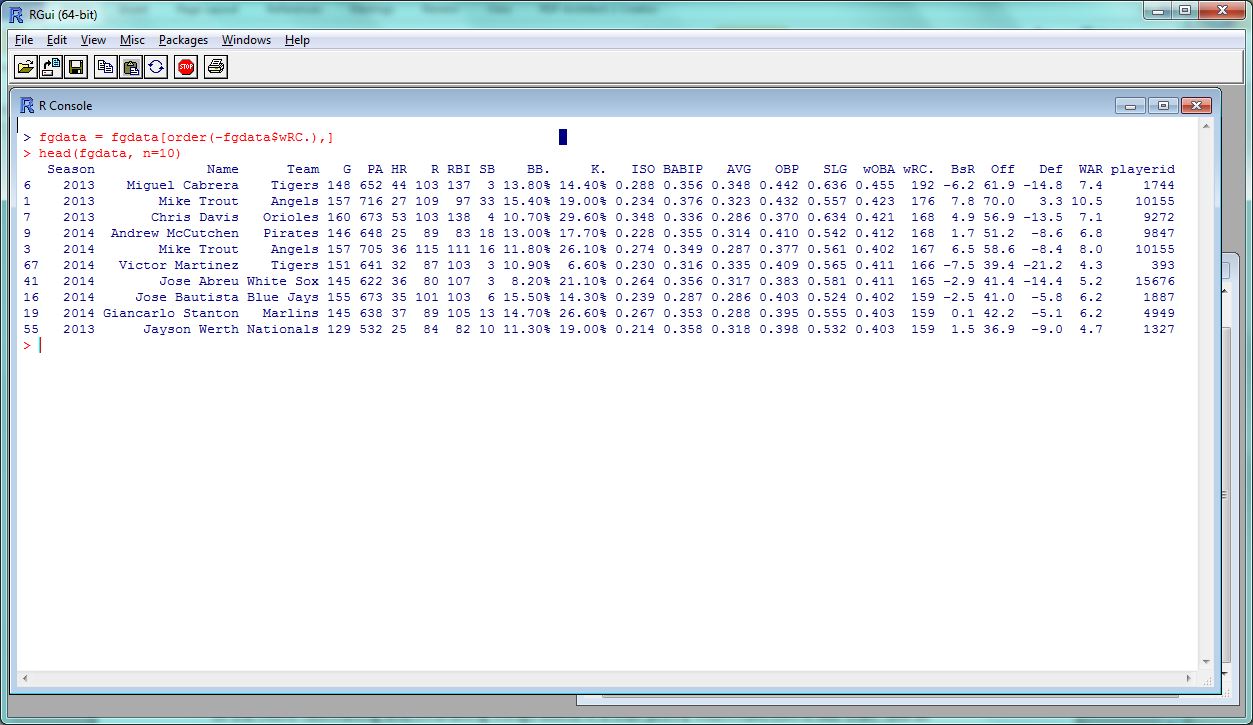
> fgdata = fgdata[order(-fgdata$wRC.),]

R Screenshot #6: head(fgdata, n = 10)And, as you’ve probably noticed, most of these functions can be tweaked or expanded depending on the different arguments you use–adding “n = 10” to head(), for example, to view 10 rows instead of 6. One of the more fascinating and infuriating things about R is that pretty much every function is like that–but at least they’re all documented!

And, of course, you can access the documentation through a function. Use help() (help(head), help(summary), etc.) and a page will pop up with the arguments, and more additional details than you probably ever wanted.

Wrap-up

One final note: typing code directly into the console is fine, but it gets a bit annoying if you want to write more than a line or two. Instead, you can create a new window within R to load, edit and run scripts. In Windows, use “Ctrl+N” to open a new script window. Type some code; to run it, highlight the lines you want to run and hit “Ctrl+R”.

You can also use these windows to save your R script in R files–as I’ve done here for all the code used in this article. Feel free to download and start tinkering.

So those are the basics of R; not enough to really show its potential, but enough to start experimenting and exploring as you wish. For Part 2, we’ll start some data plotting and correlation tests, and in Part 3 we’ll try to recreate some basic baseball projection models. I actually haven’t done this before in R, so it should be interesting. Stay tuned!

(Thanks to Jim Hohmann for helping test this article.)